How do I update a Brand Kit?
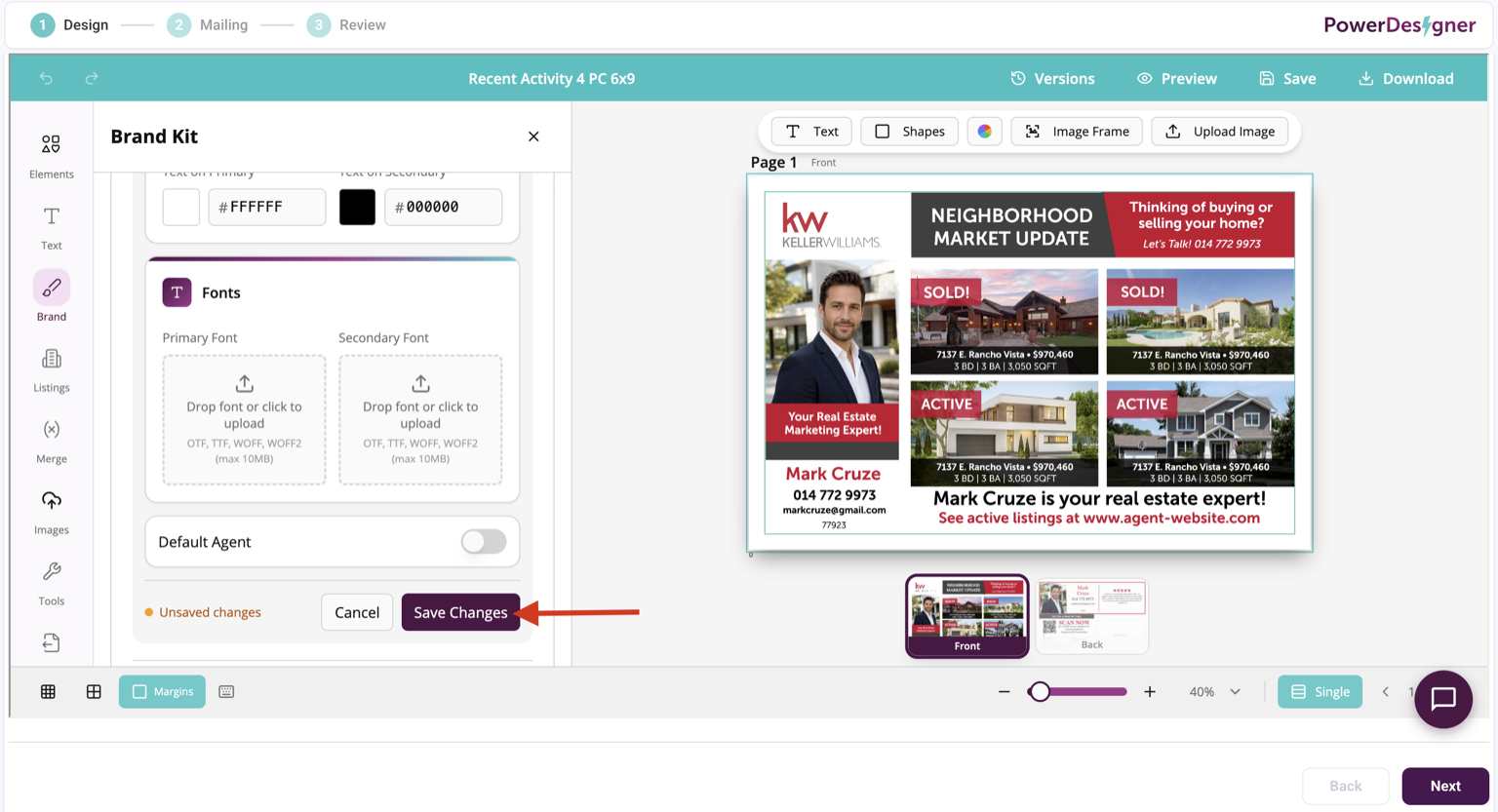
On the canvas, open Brand in the left-side panel and select the agent you want to update. Change the details, headshot, logos, colors, fonts, or saved copy, then save your changes.
Apply the Brand Kit to your template again to populate the supported fields with the updated information.
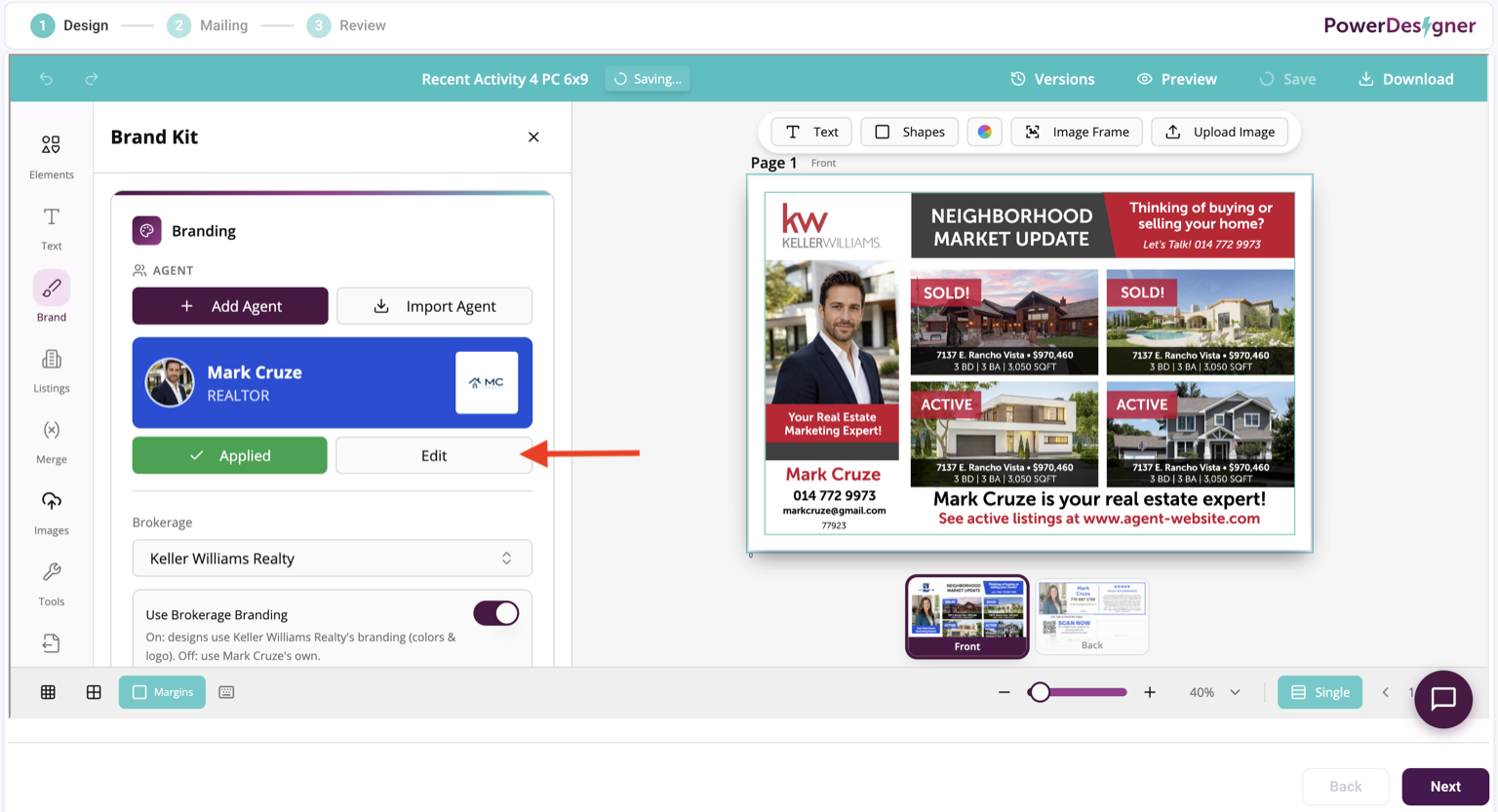
Step 1
Click Edit on the agent you want to update.
Step 2
Make any needed updates to your contact information, brand colors, brokerage, or logos. Once you are done, save your changes and apply the updated Brand Kit to your template.