How do I add my brokerage to a template?
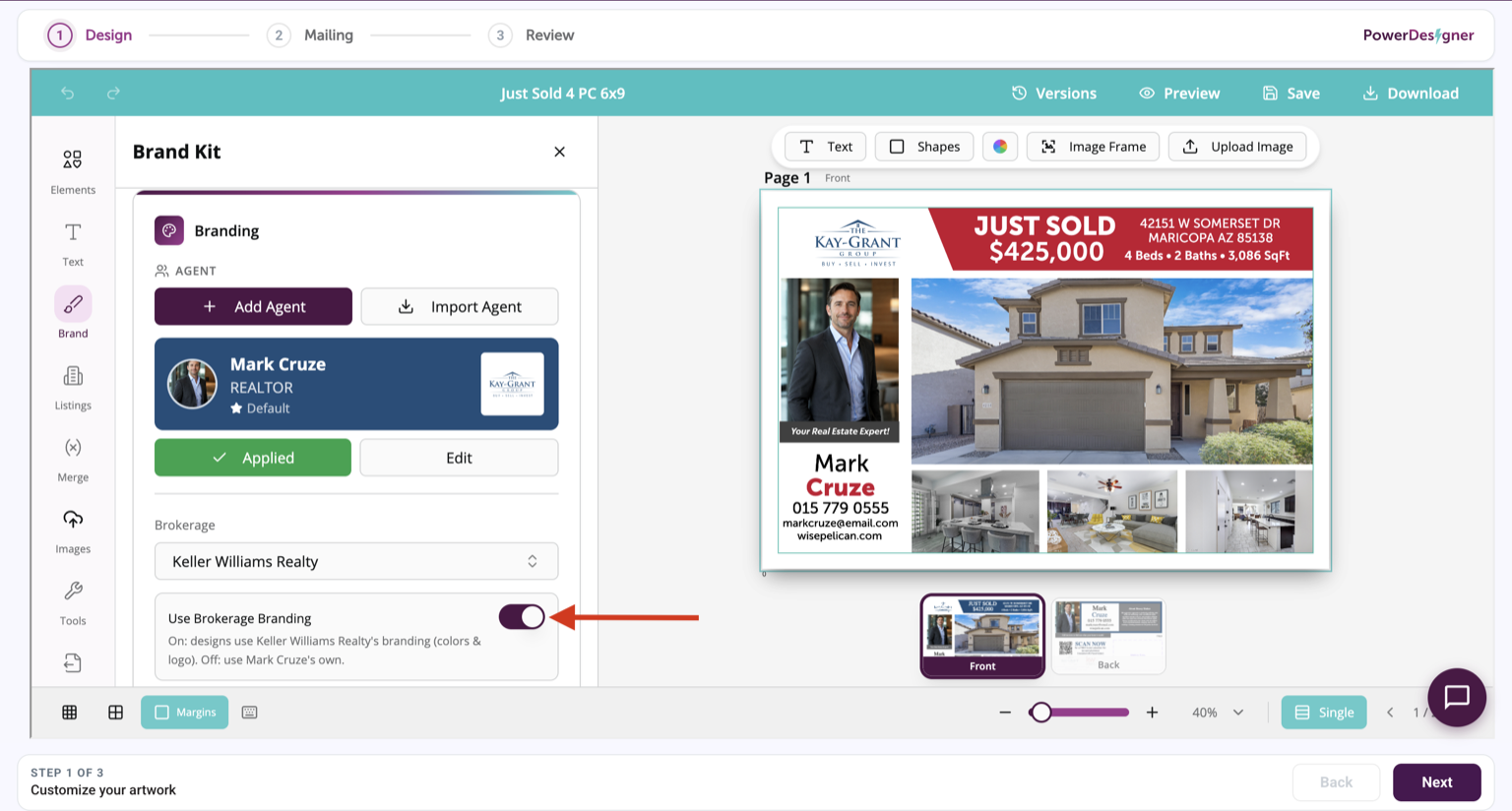
Open the Brand panel to view the agent currently applied to your template. If a brokerage is connected to that agent, the option to use its branding will appear under Brokerage.
- Open Brand in the left-side panel.
- Scroll down to Brokerage.
- Turn on Use Brokerage Branding. You do not need to edit the agent.
PowerDesigner will apply the brokerage's linked logos, colors, and fonts to the supported elements while keeping the existing layout in place.
To add or change the brokerage connected to another agent, edit that agent's profile.