How do I reposition a photo inside its frame?
To reposition a photo inside its frame, double-click the photo to reveal the full image, then drag it within the frame until it fits your design.
The frame keeps its size, shape, and position while the photo moves inside it.
In this example, the large main image is not positioned correctly inside its frame. The subject is too close to the edge, so we will move the photo without changing the frame.
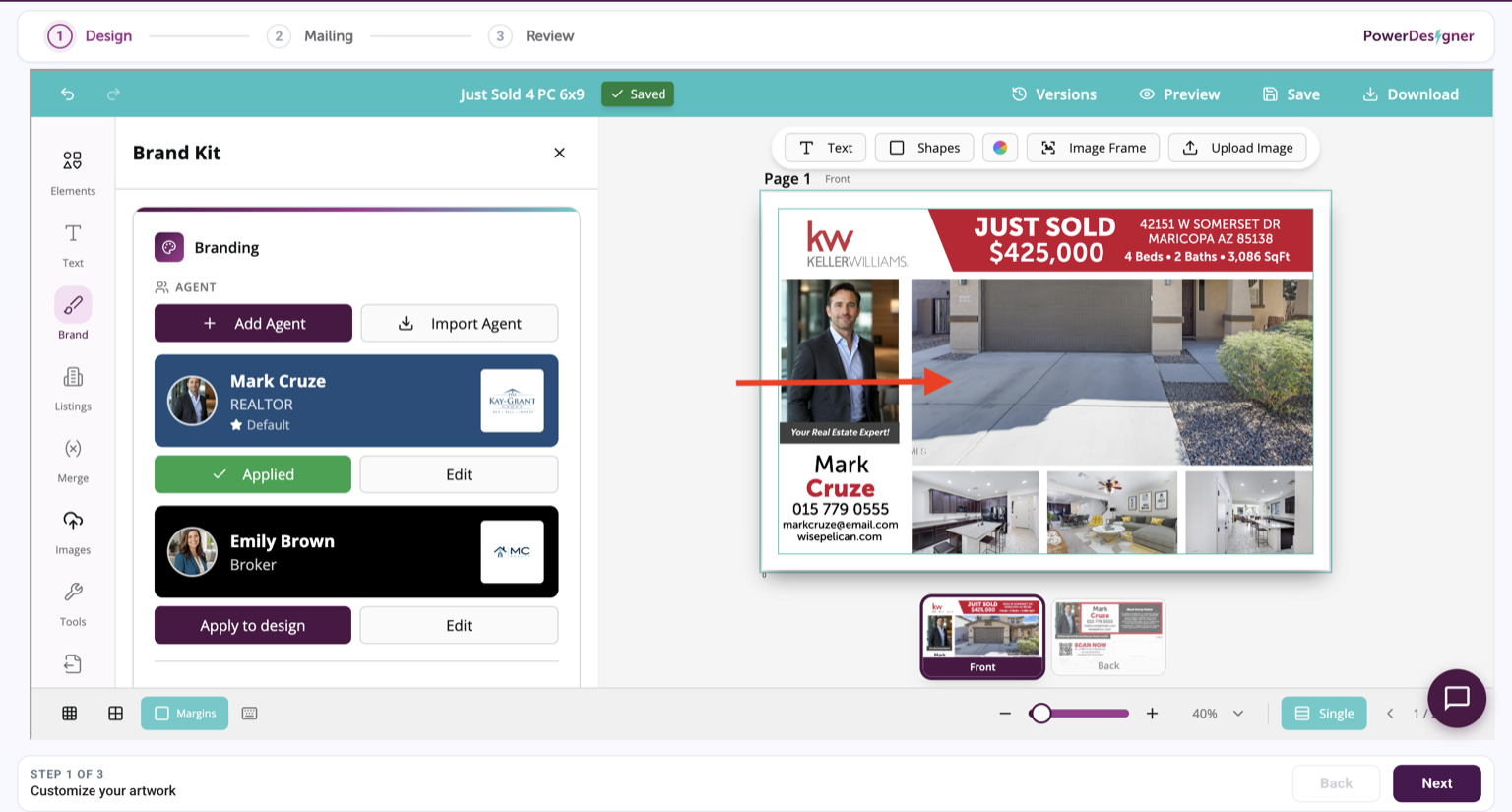
Step 1: Open the photo
Double-click the photo to reveal the full image inside its frame.
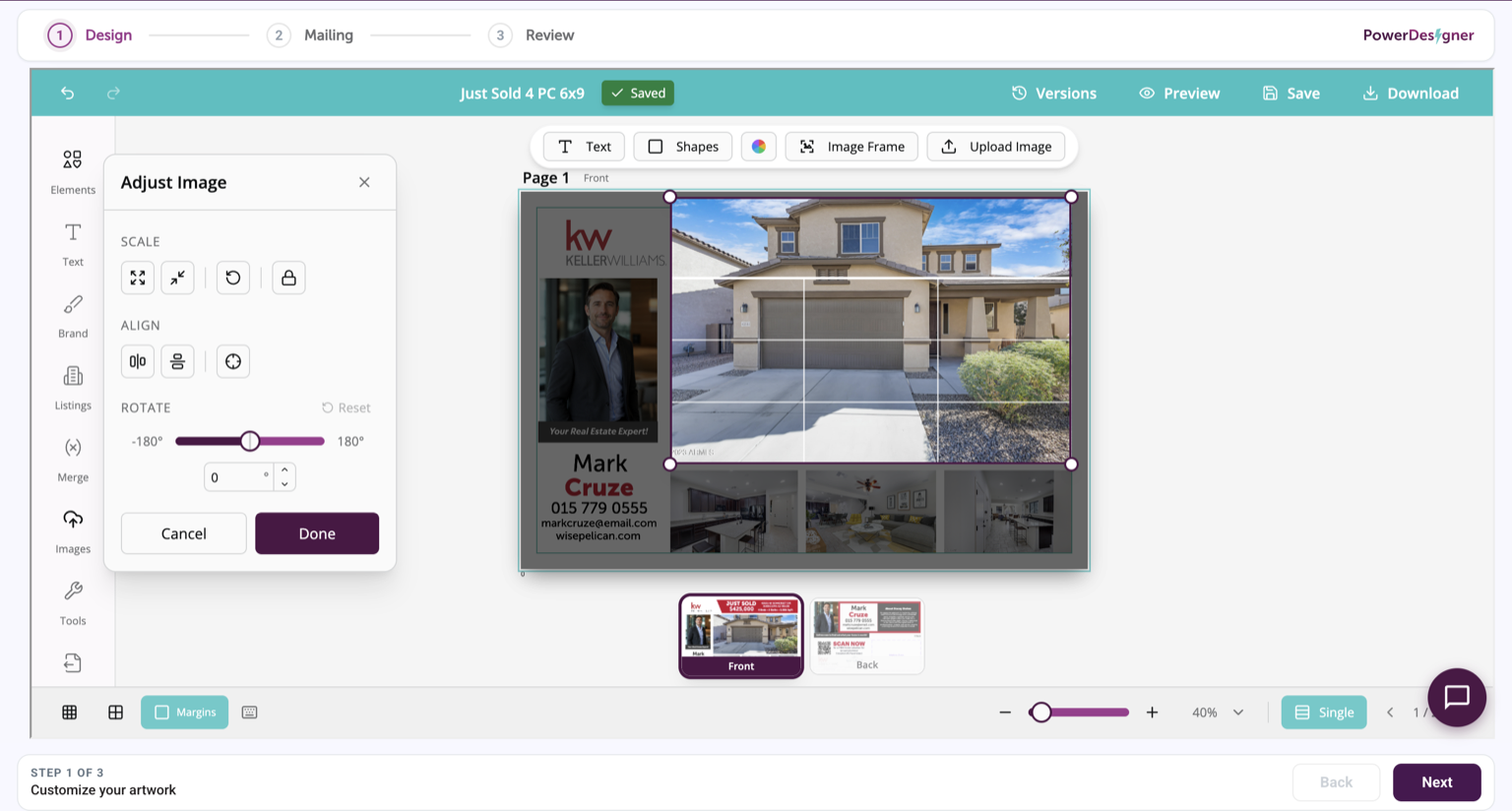
Step 2: Reposition the photo
Drag the photo into place, then click outside the frame to finish.